

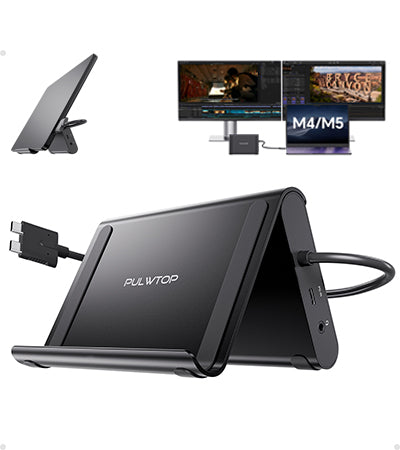
PULWTOP Macbook Docking Station Dual Monitor with 2×HDMI, 10Gbps USB-C/A, Ethernet, Audio for MacBook Pro/Air M4/M5 – Midnight
Tax excluded.
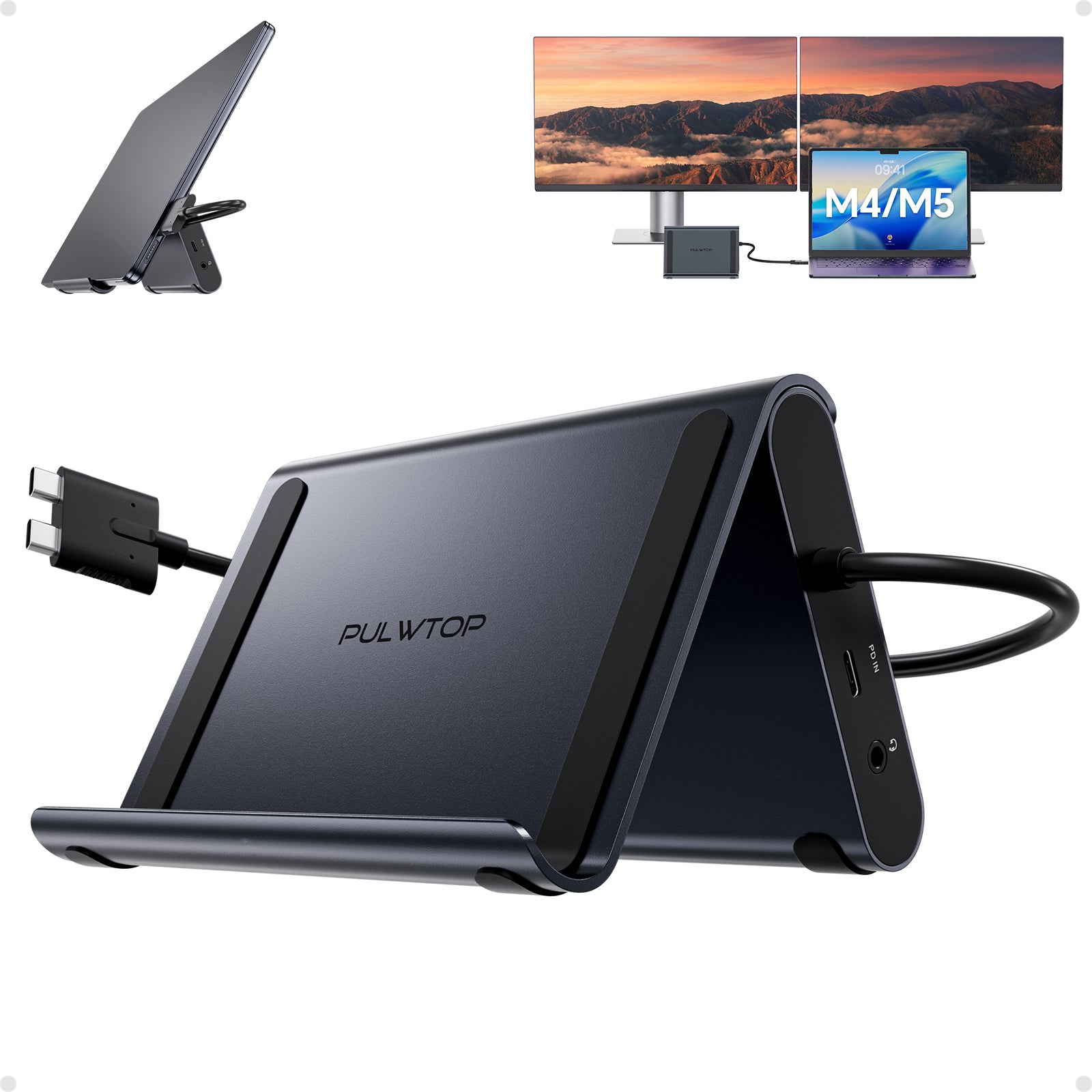
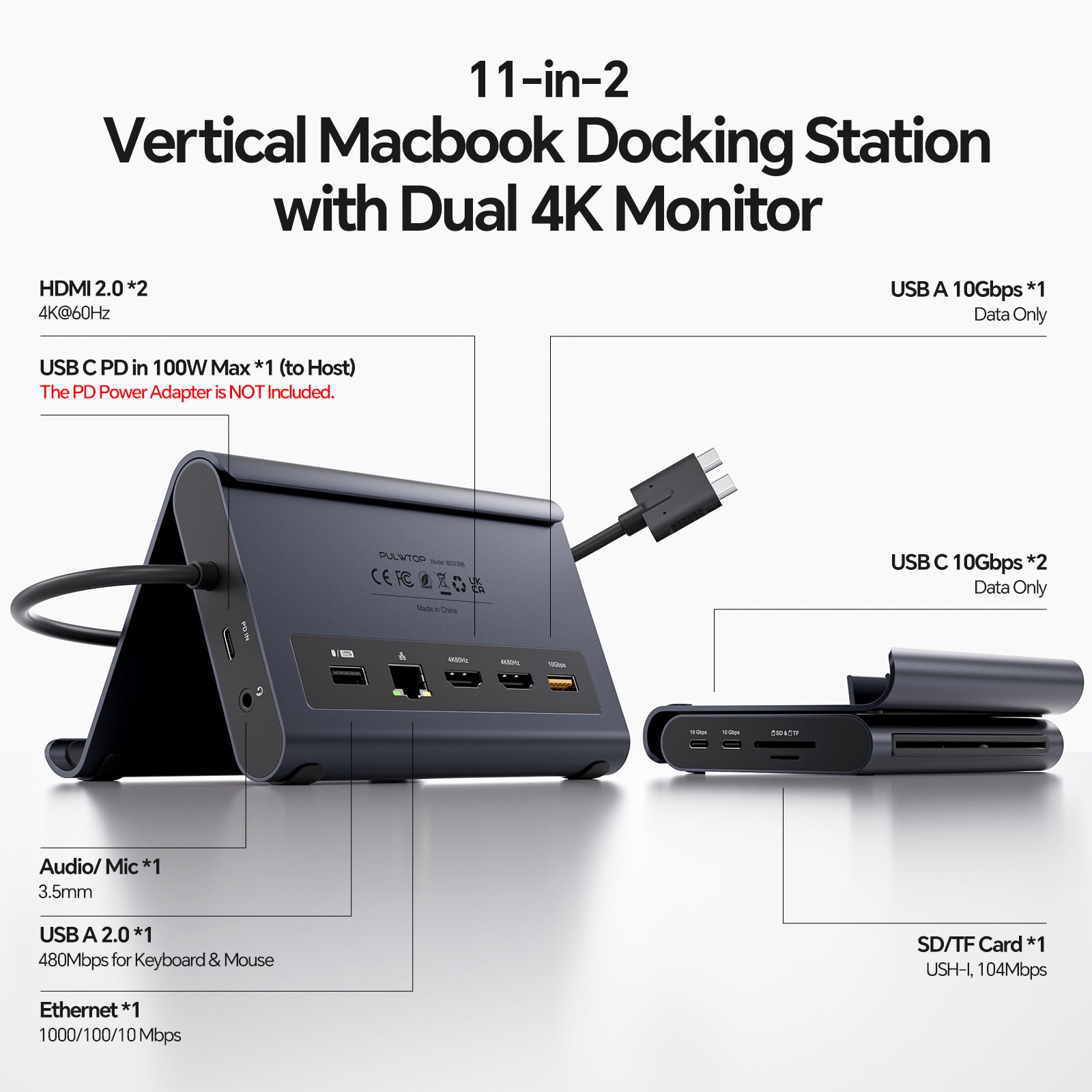
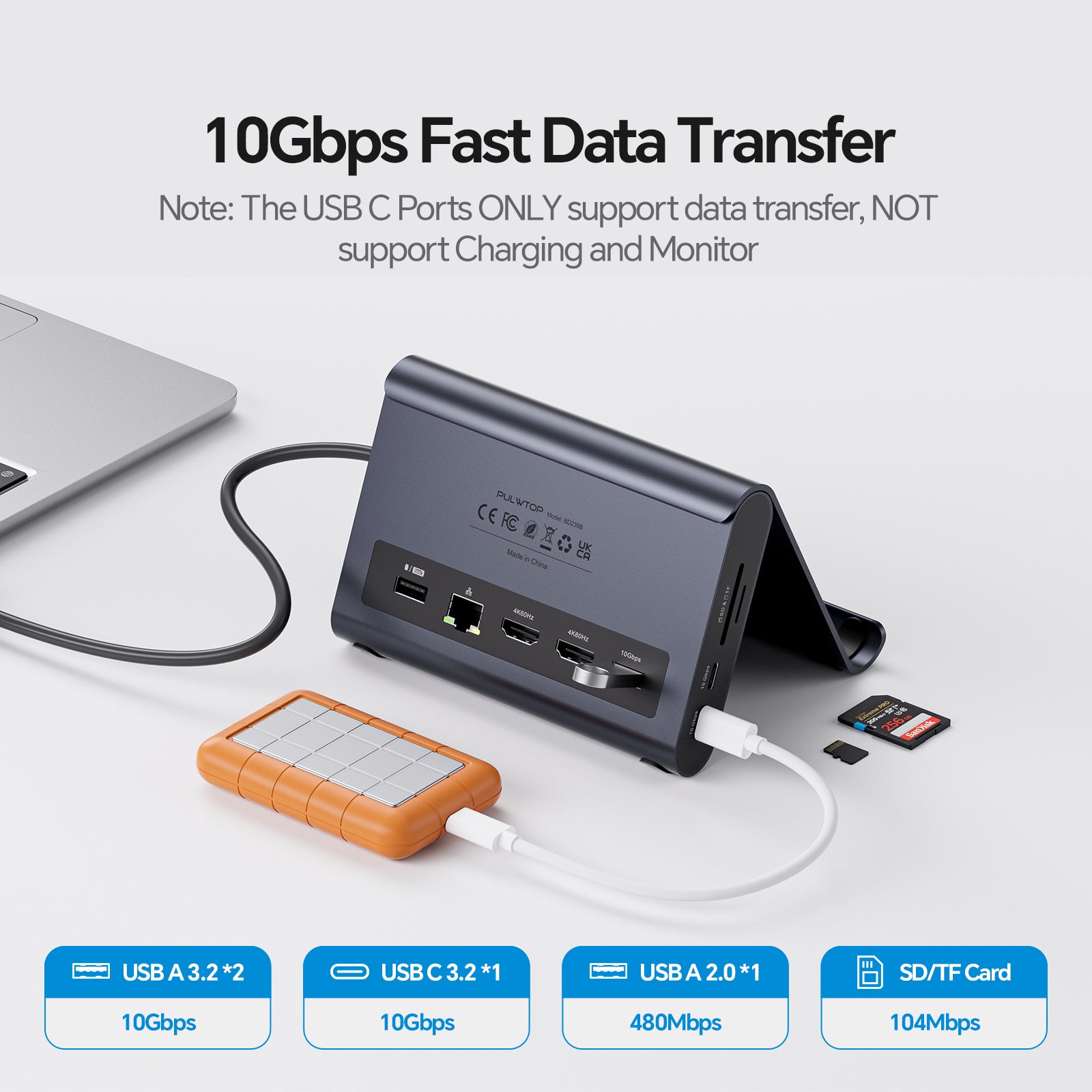
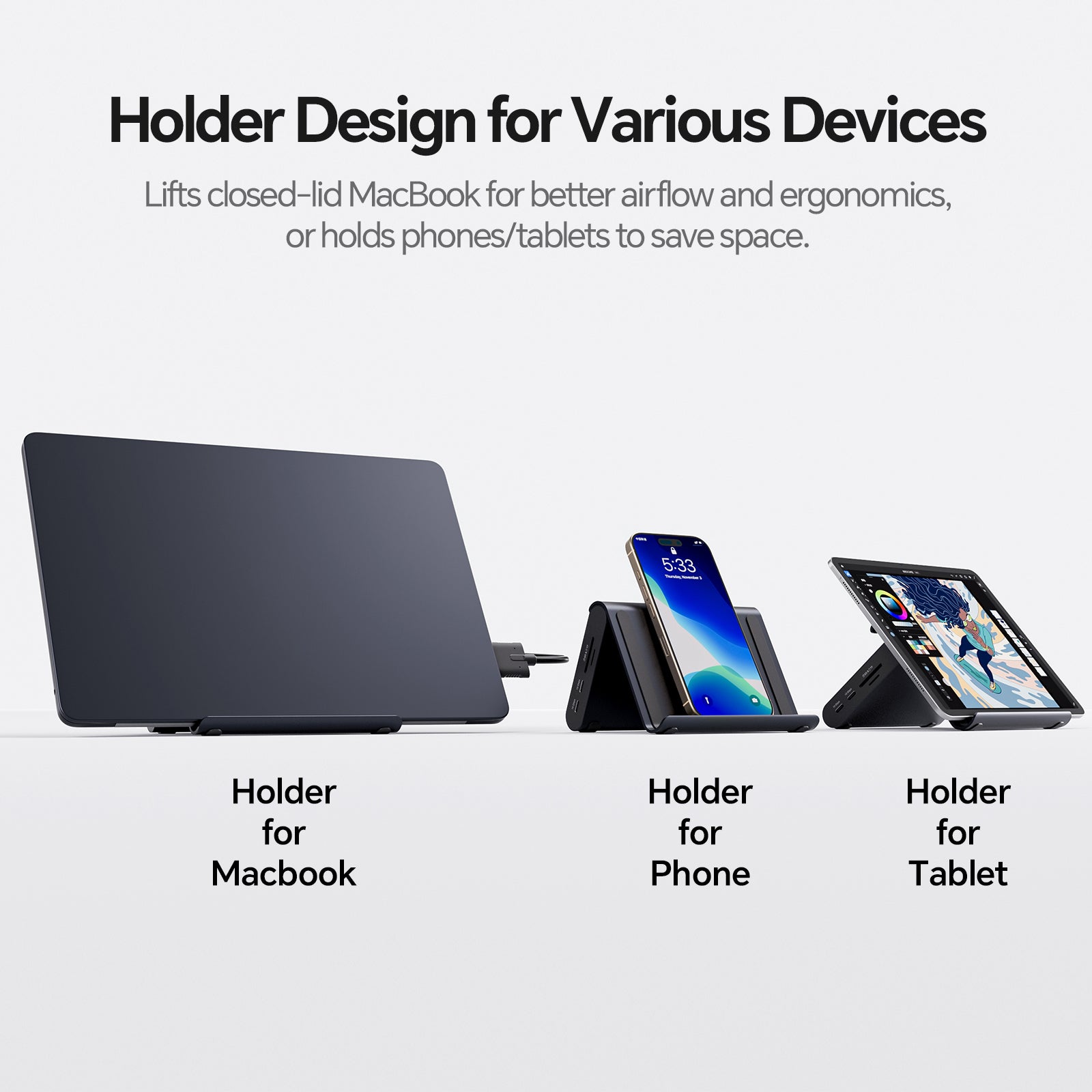
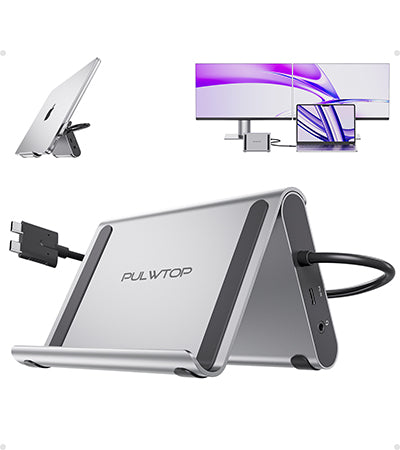
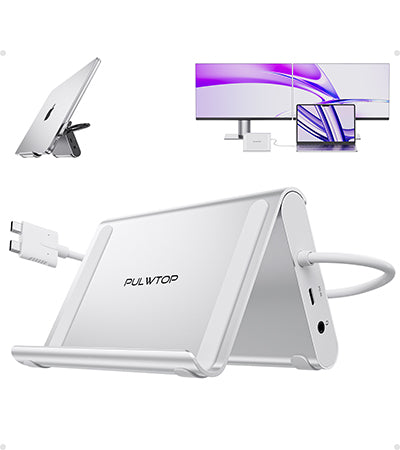
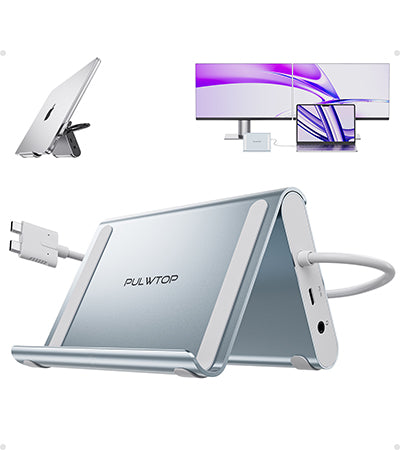
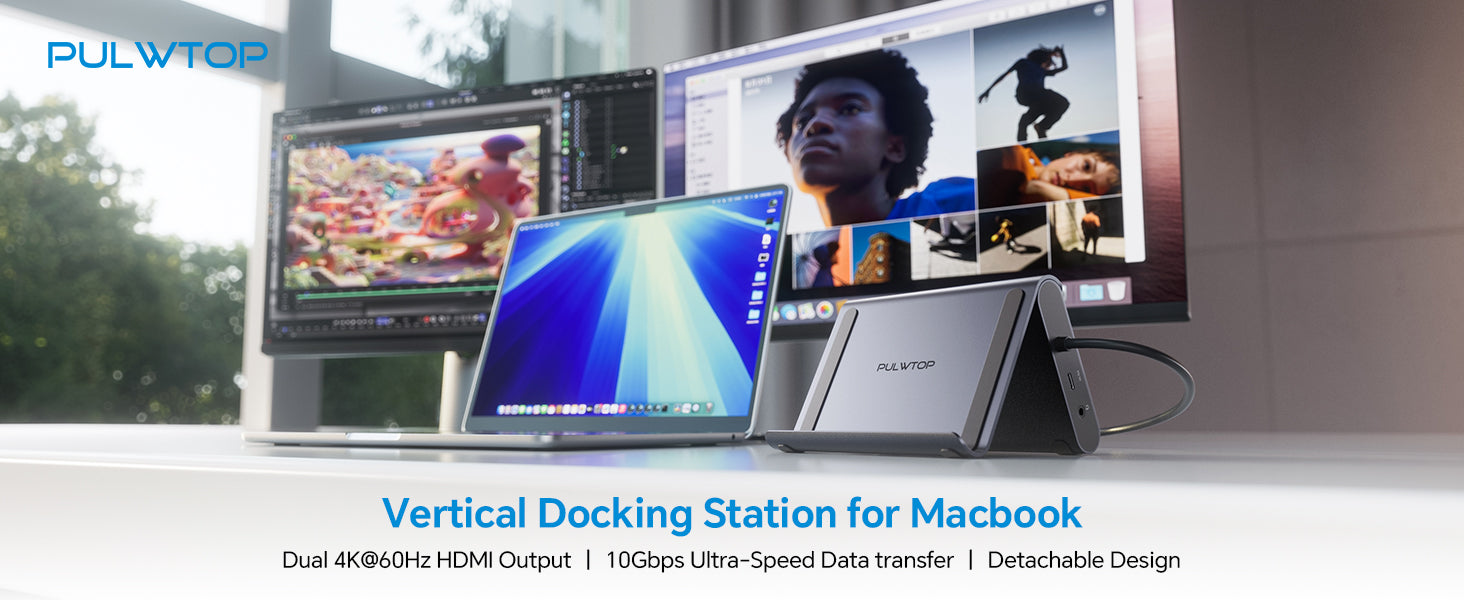
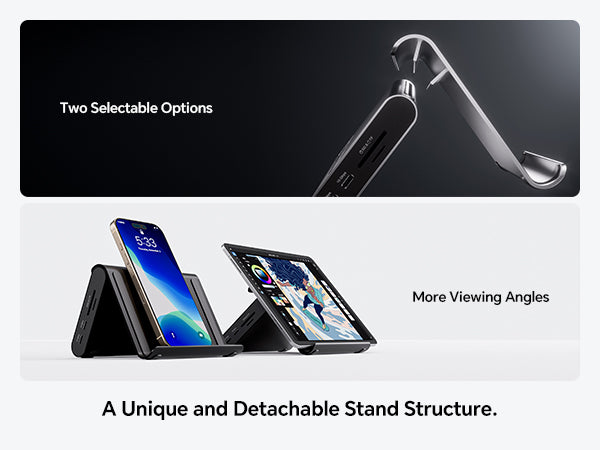
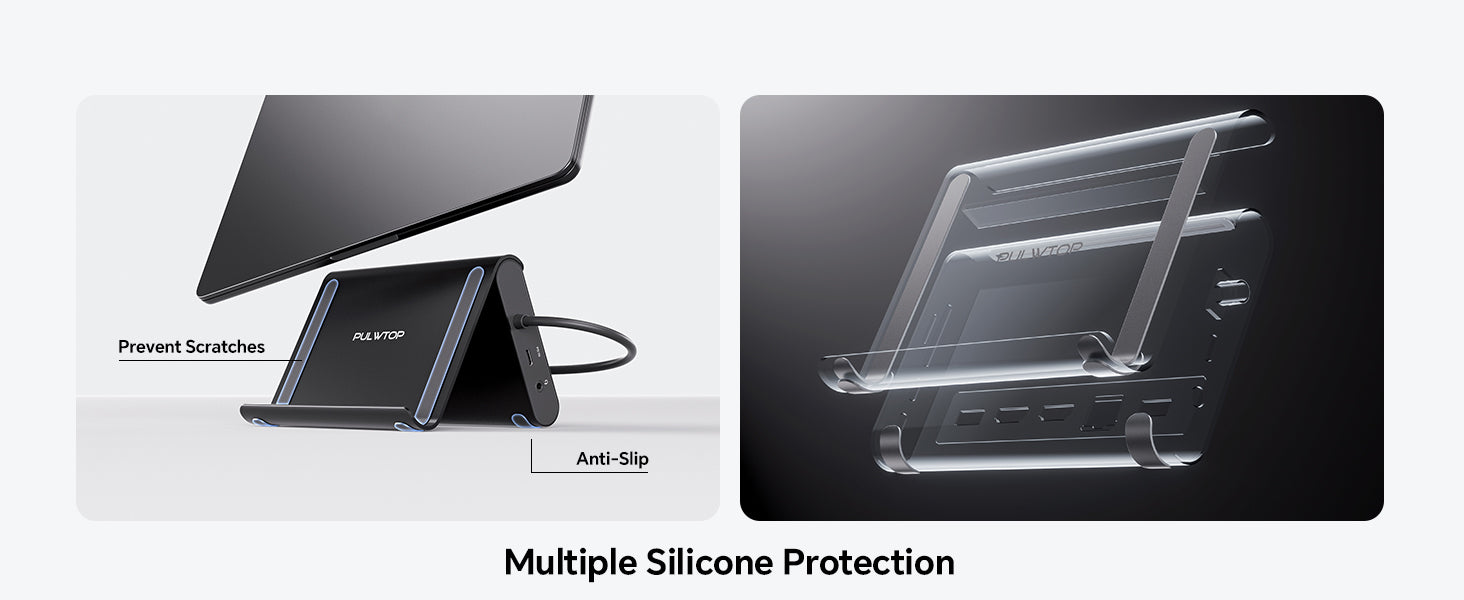
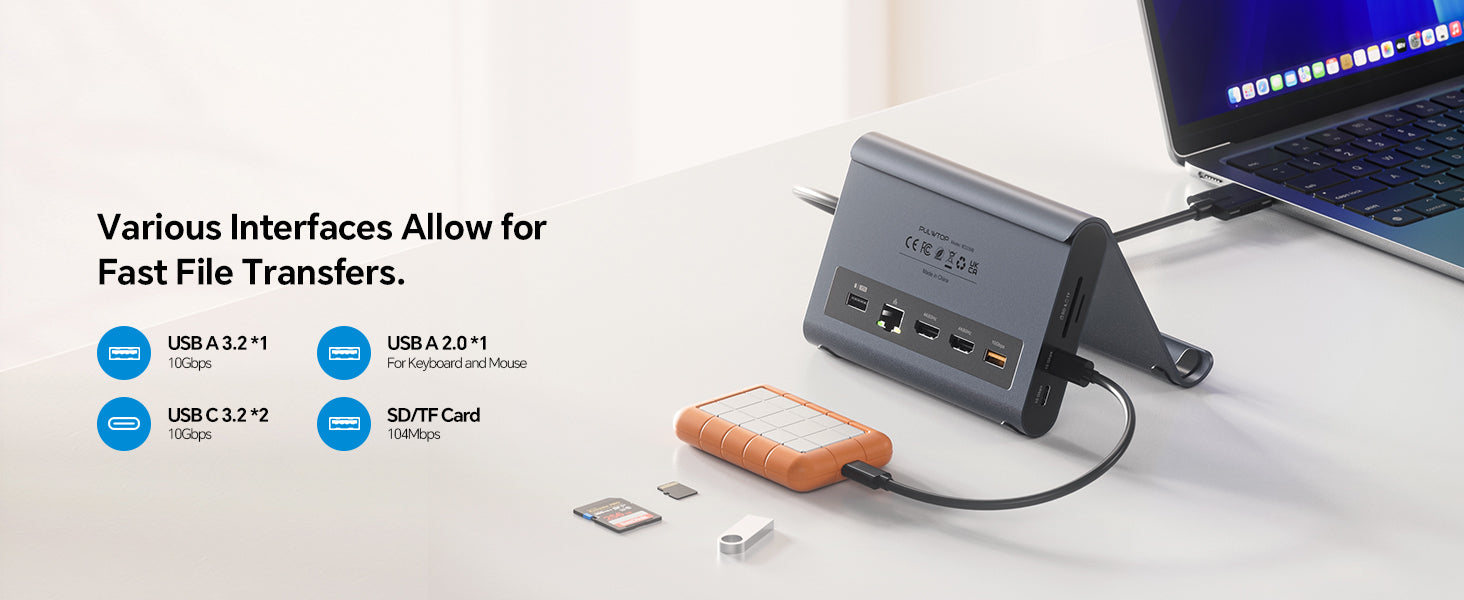
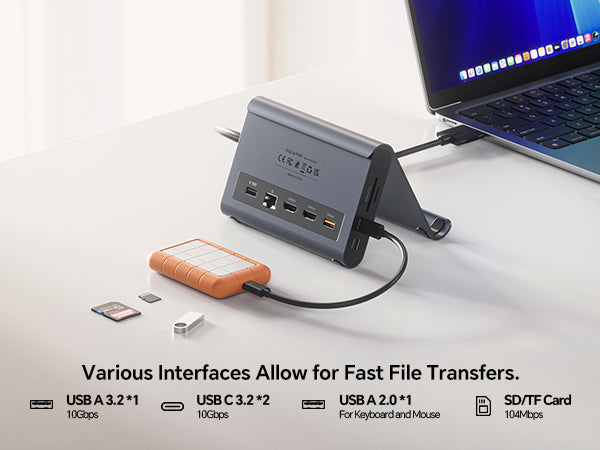
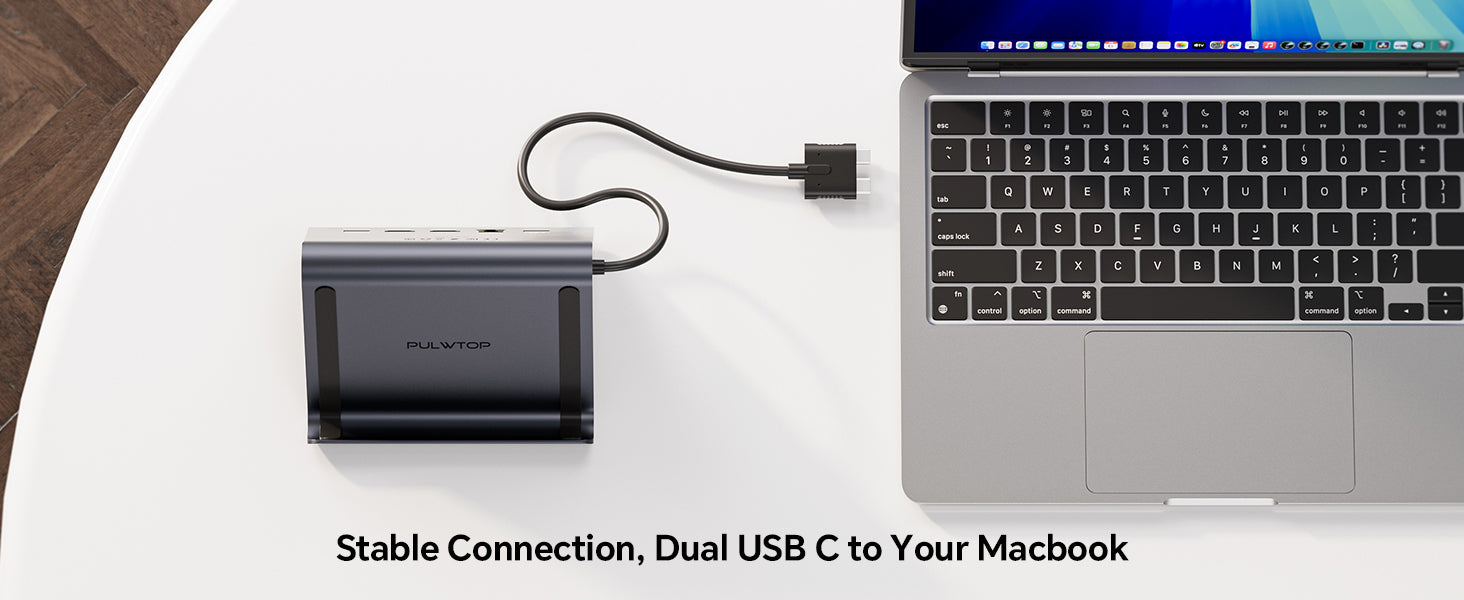
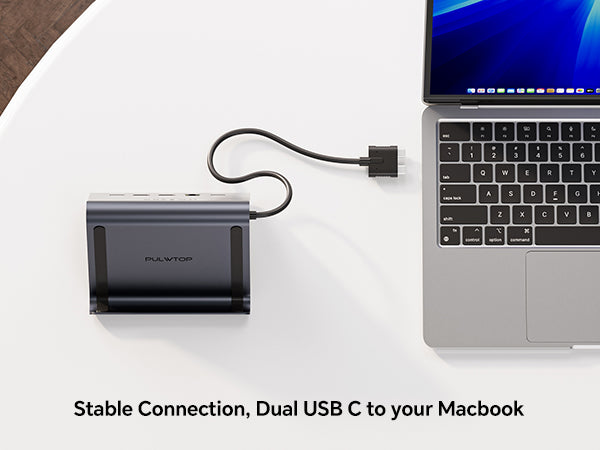
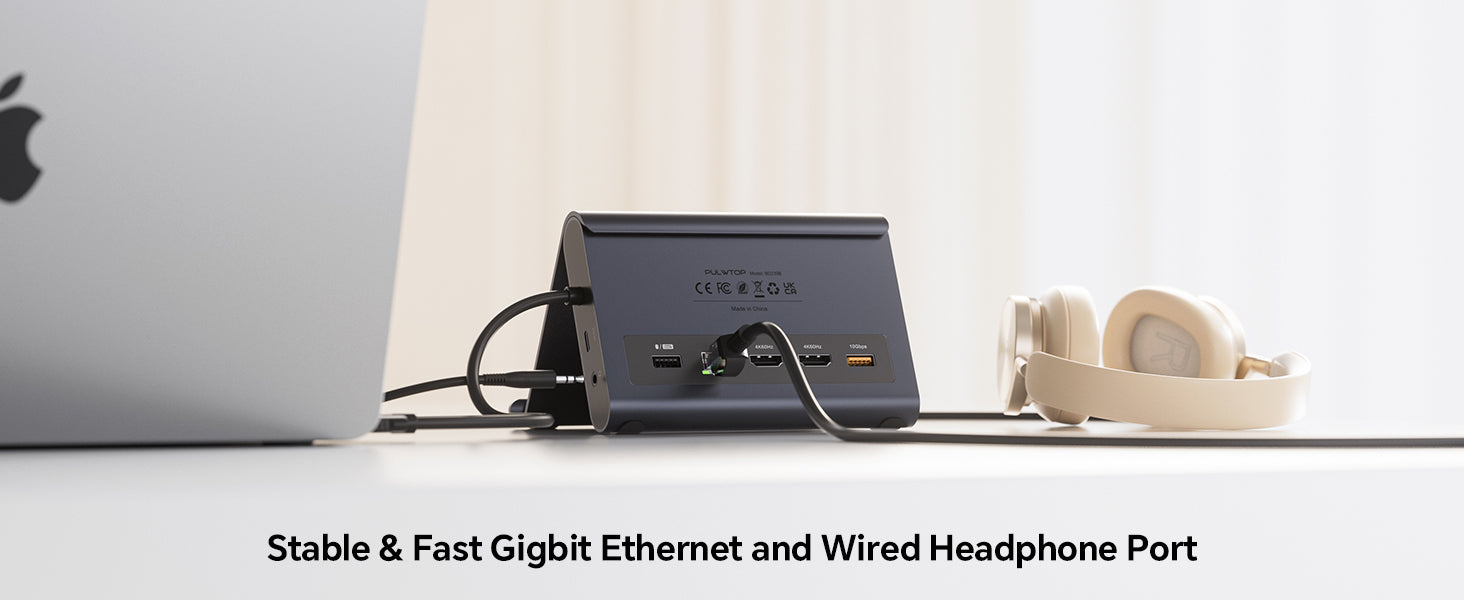
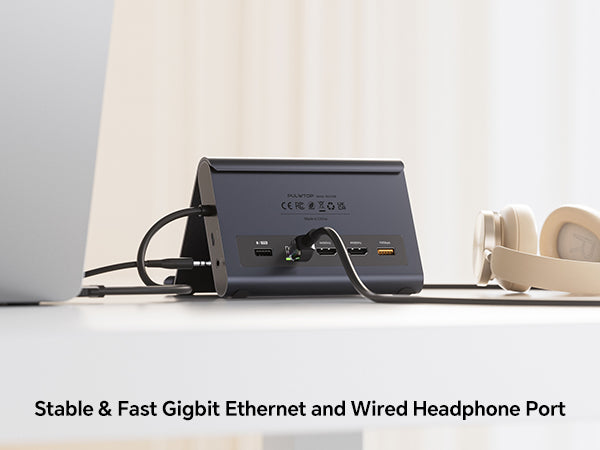
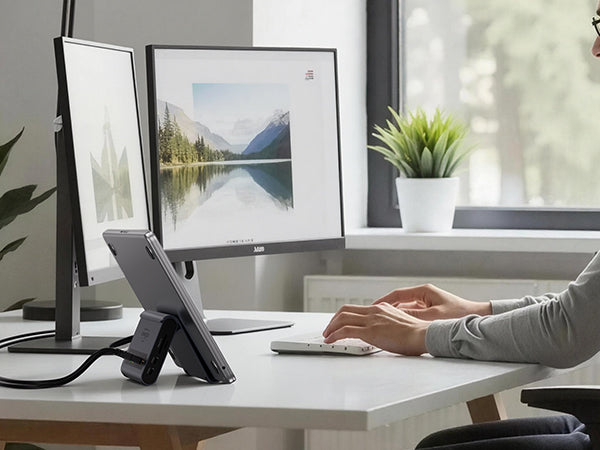
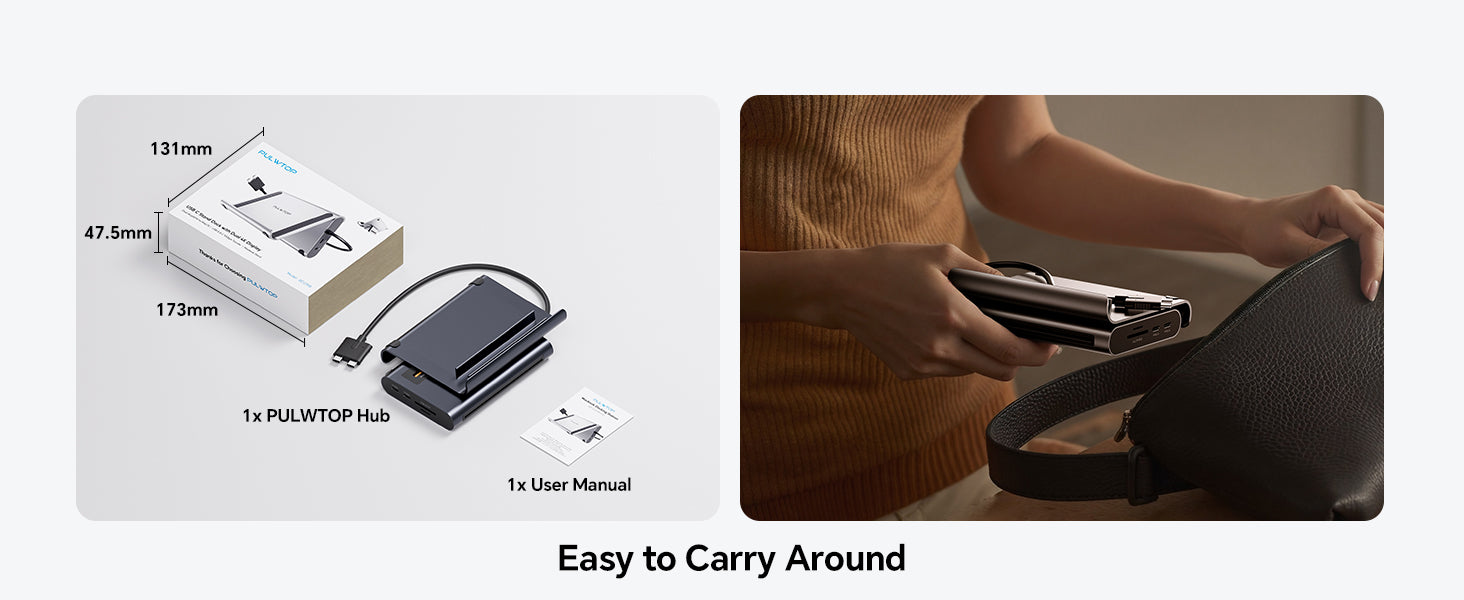
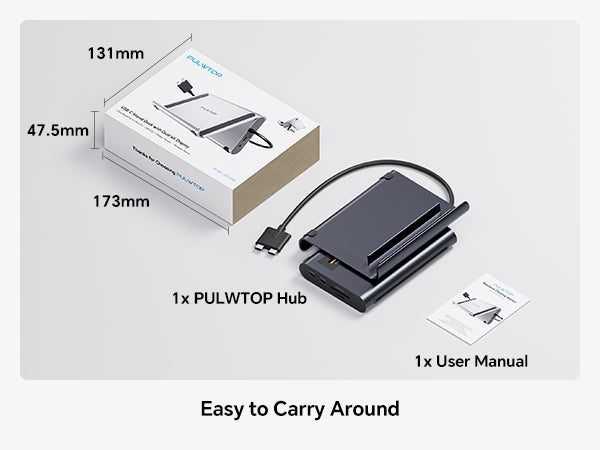
- 【2-in-1 Macbook Dock & Vertical Stand】This macbook docking station stand combines a macbook air dock with a sturdy laptop stand. Hold your MacBook in the stand, also works as a holder for tablets and phones. The macbook pro dock features 2x 4K@60Hz HDMI, 2x USB-C 10Gbps, 1x USB-A 10Gbps, 1x USB-A 2.0, SD/TF, 3.5mm Audio, and Gigabit Ethernet (RJ45) & 100W PD input (PD adapter not included).
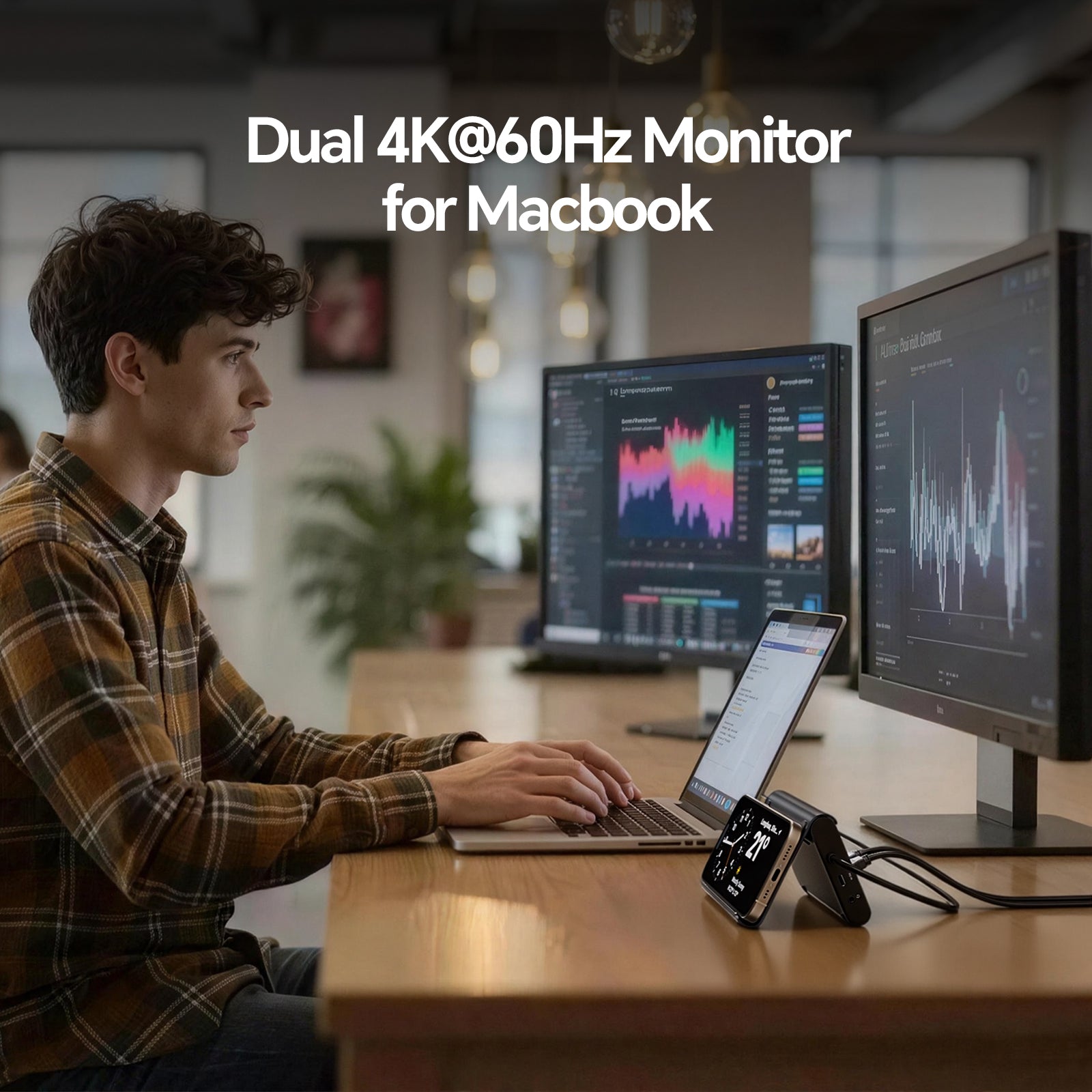
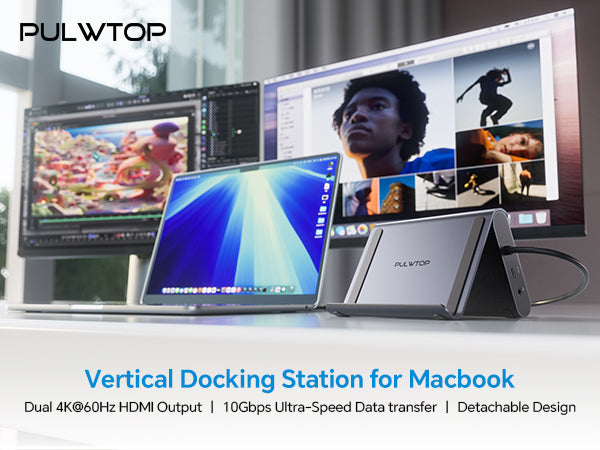
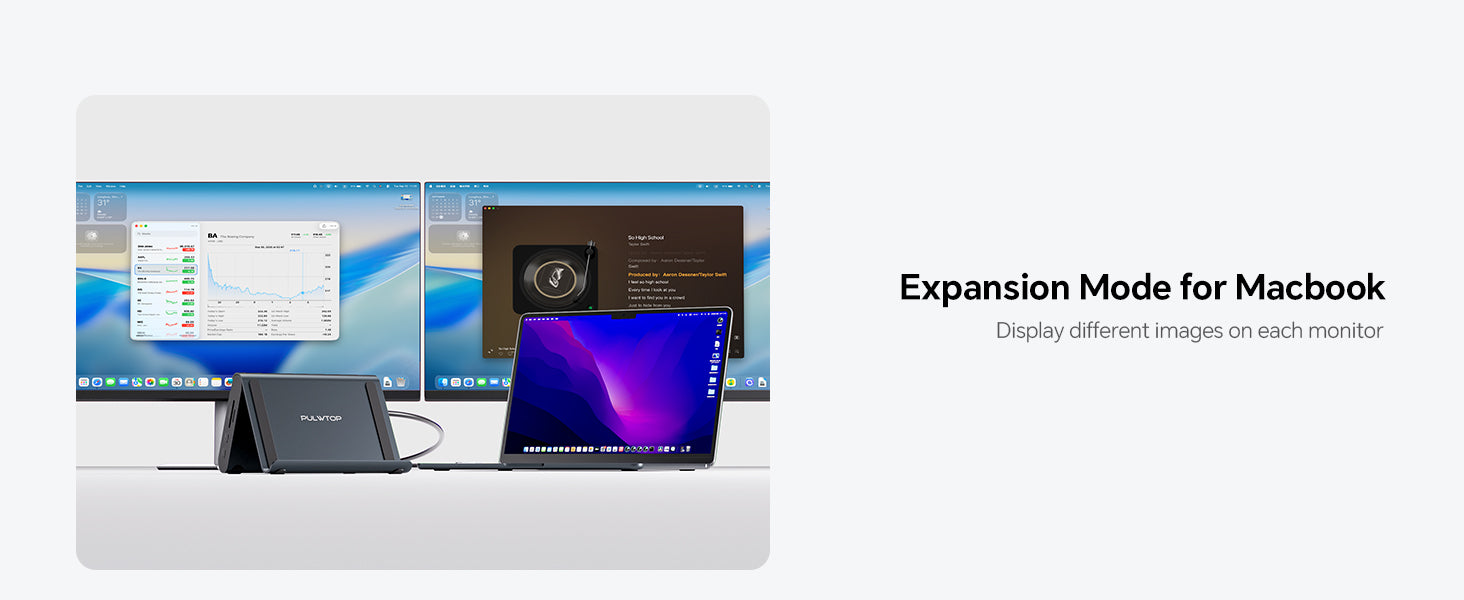
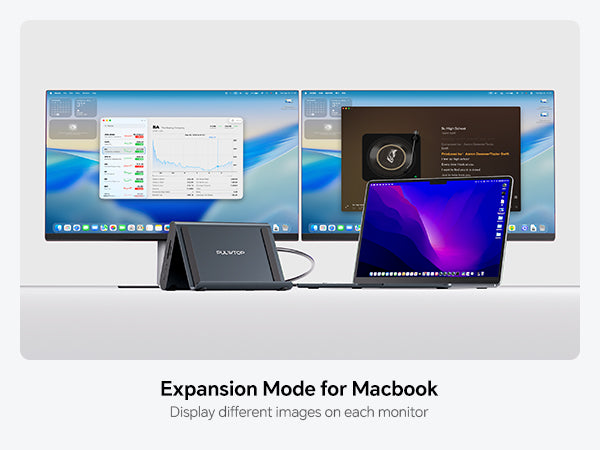
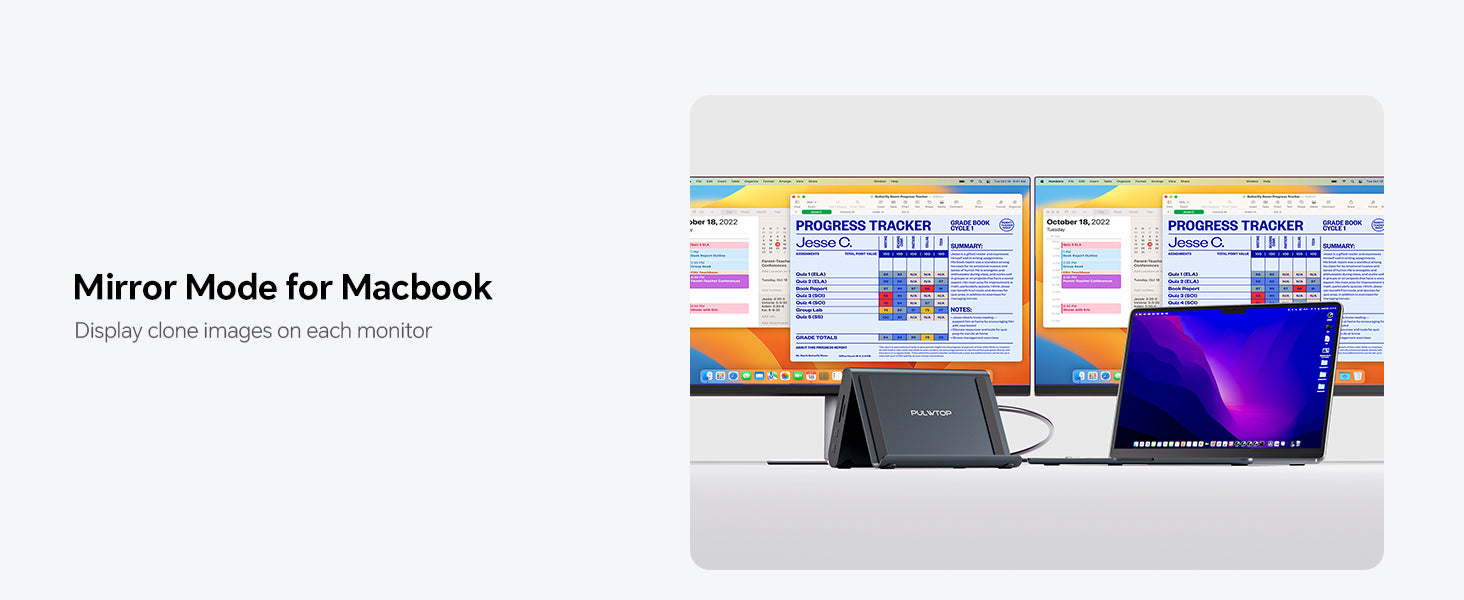
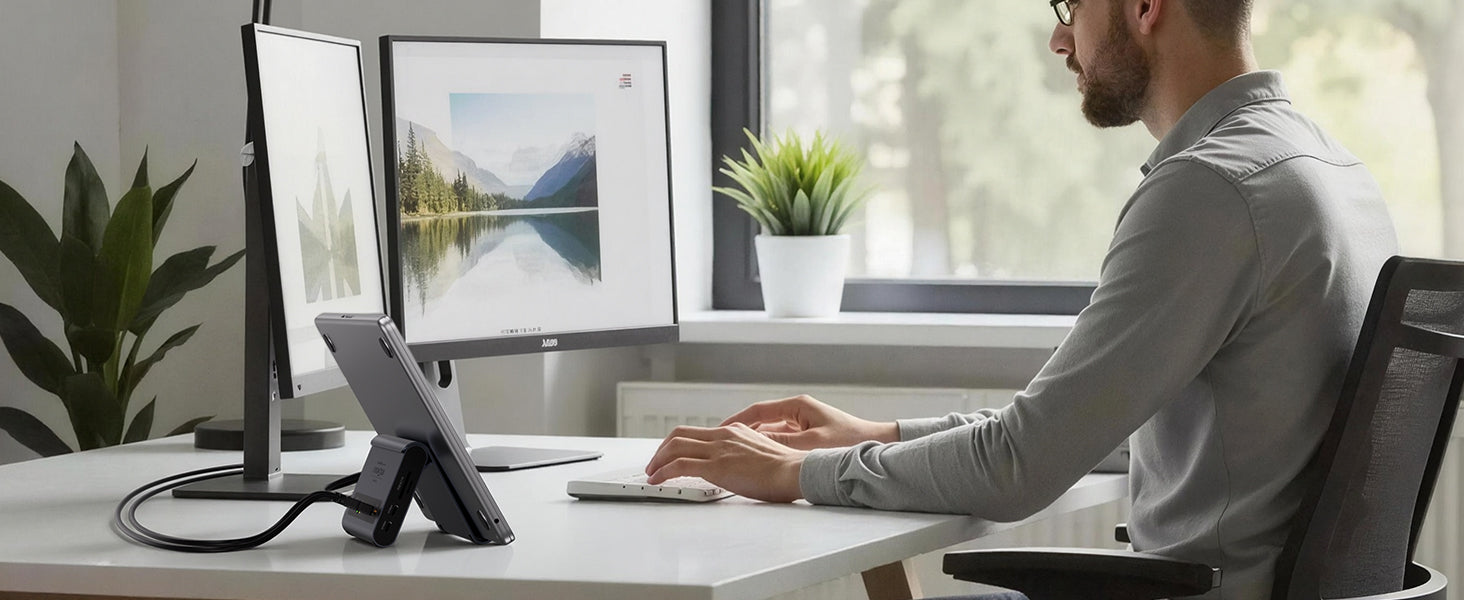
- 【Dual 4K@60Hz for MacBook Pro/Air】This macbook docking station dual monitor delivers stunning 4K@60Hz video output via dual HDMI ports — ideal for video editing, creative workflows. Transform your MacBook into a powerful dual‑monitor workstation for mirroring or extending, enjoy ultra‑smooth visuals and seamless multitasking for your laptop dock.
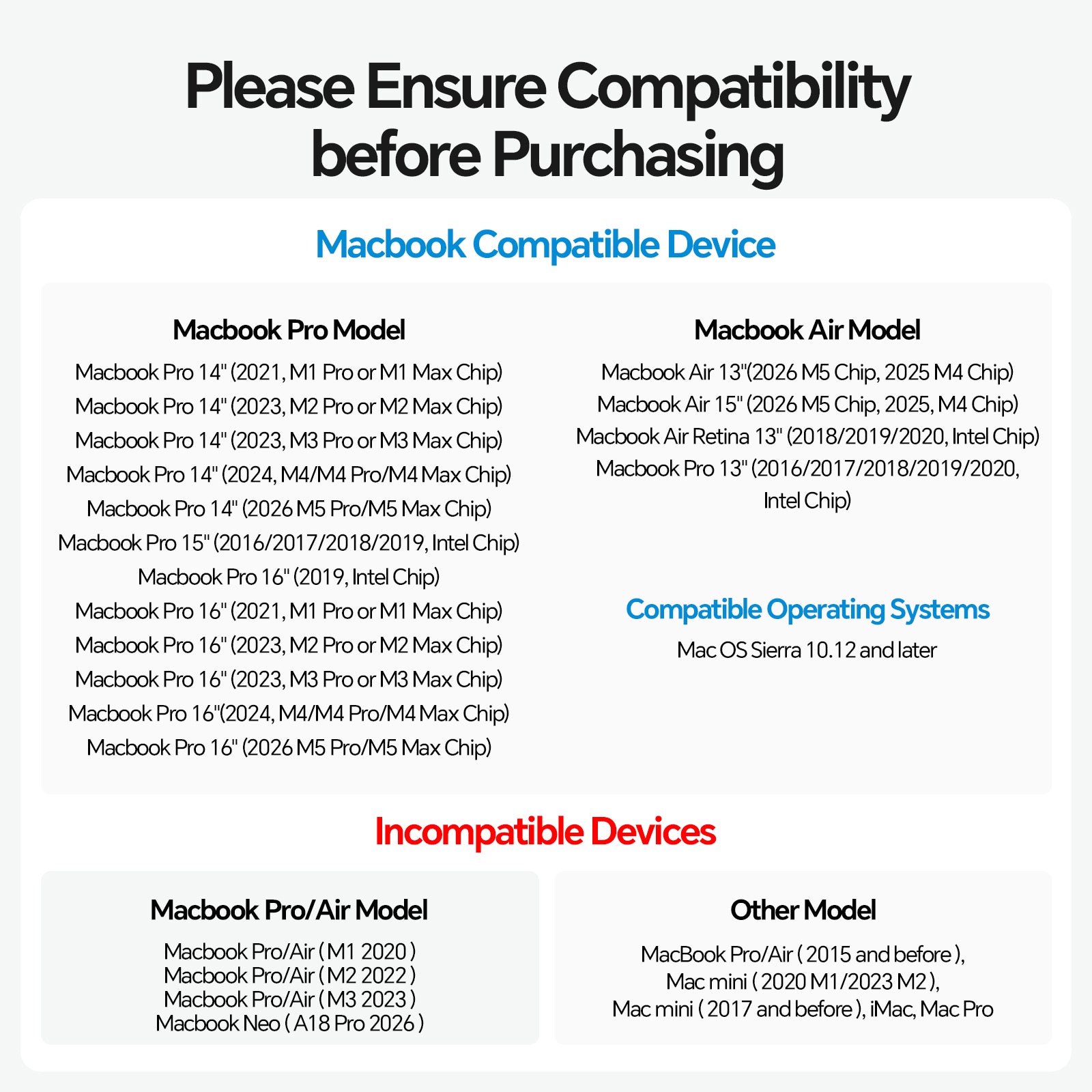
- 【Precision Compatibility - MacBook Only】This macbook pro docking station dual monitor is precision-engineered for MacBook Pro/Air 2016–2026 (Intel chips,M1 Pro/Max, M2 Pro/Max,M3 Pro/Max, M4 Base Chip,M4 Pro/Max,m5 Base Chip,M5 Pro/Max). ★NOT compatible with M1, M2, or M3 Base chips. Also incompatible with Windows laptops, MacBook Neo, Please verify your model before purchase.
- 【10Gbps Ultra-Fast Data Transfer】This macbook air docking station delivers 2×10Gbps USB-C and 1×10Gbps USB-A (Data Only – no video & charging). Move massive 4K videos, photo libraries, or backups in seconds. Perfect for video editors, designers.usb c docking station dual monitor companion for your MacBook workflows. A dedicated USB-A 2.0 port keeps your mouse and keyboard lag‑free‑smooth precision.
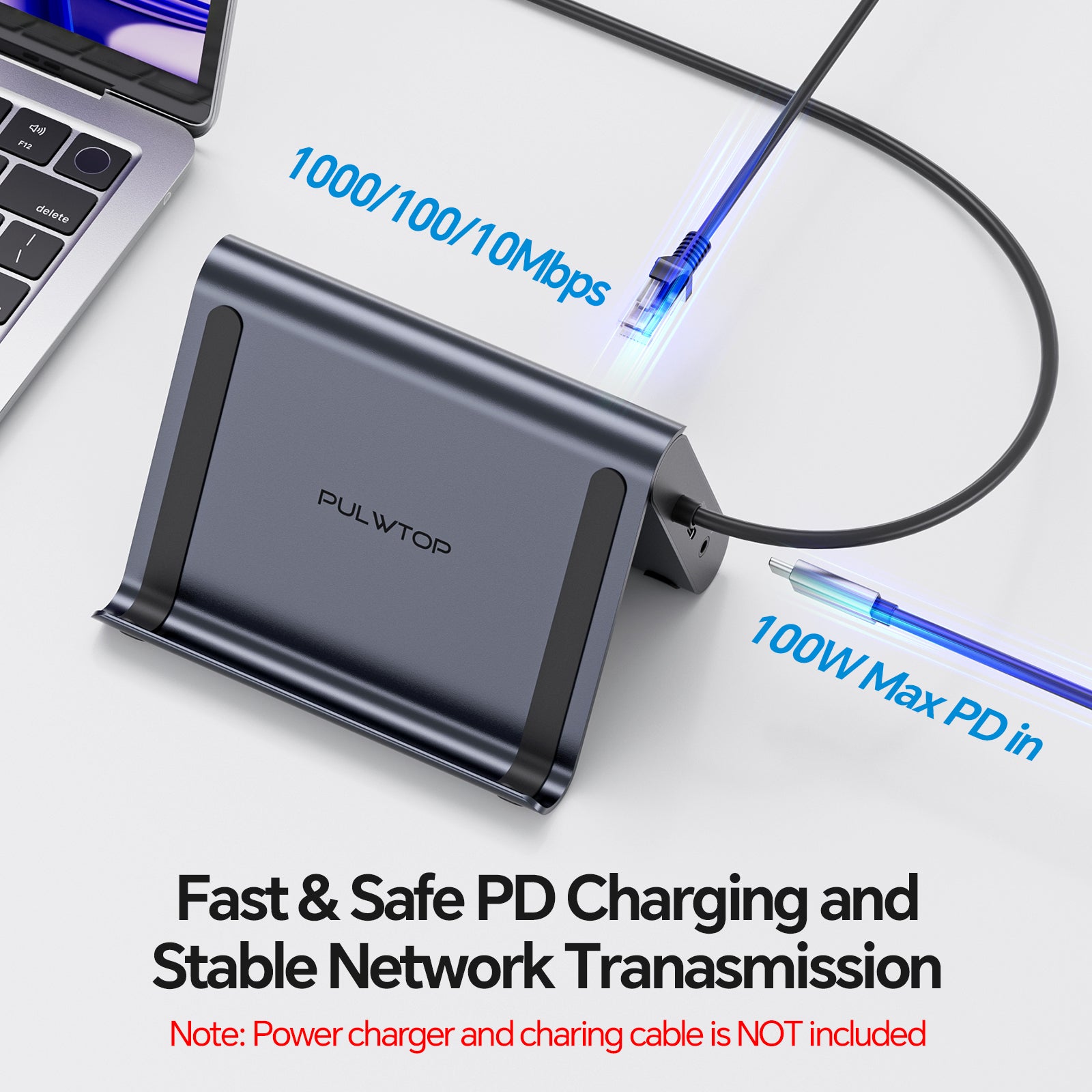
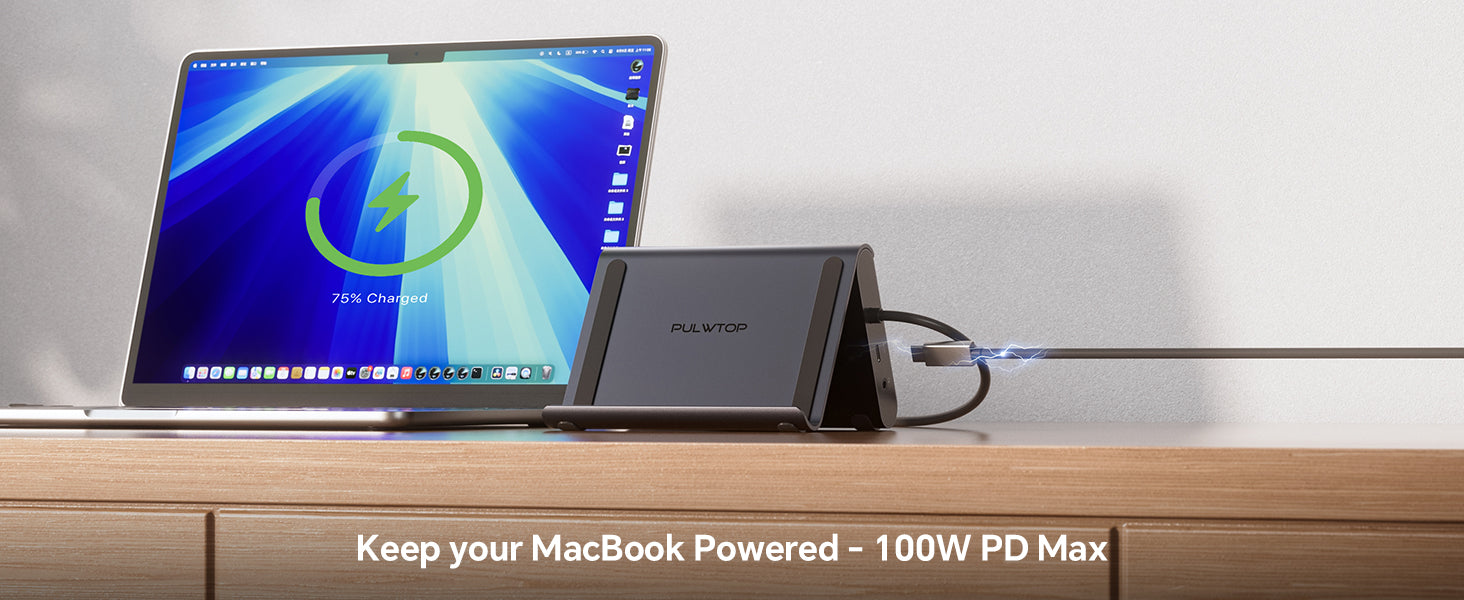
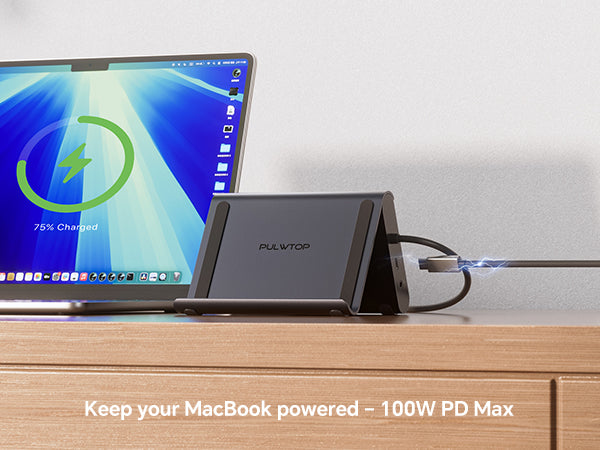
- 【100W PD + Gigabit Ethernet】This macbook pro m5 docking station support Max 100W PD input and 95W output to charge MacBook Pro or Air at full speed – even under Final Cut Pro or dual monitors. Built‑in Gigabit Ethernet ensures lag‑free Zoom calls. No battery anxiety, no Wi‑Fi drops. A true docking station for macbook pro that keeps you productive all day.
-
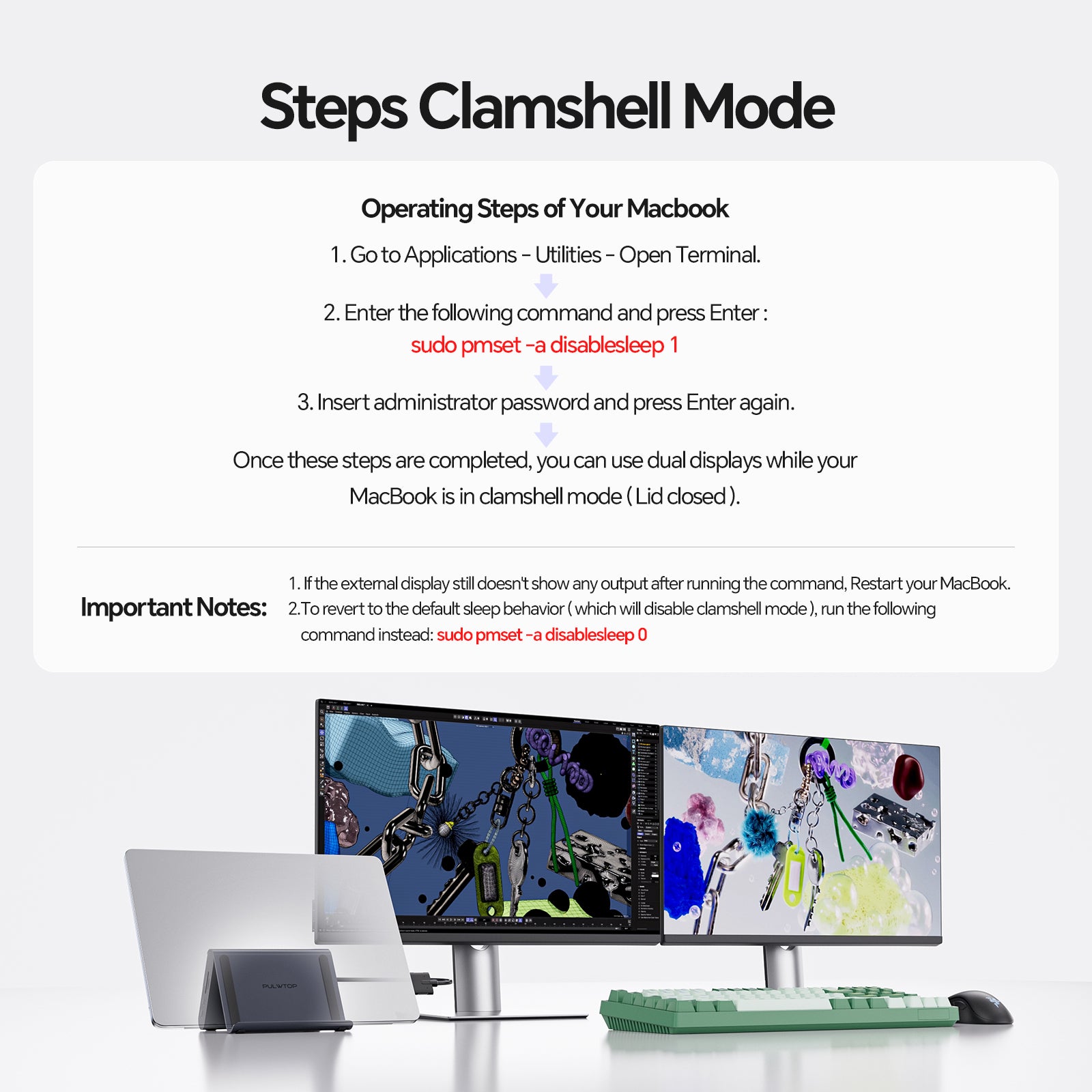
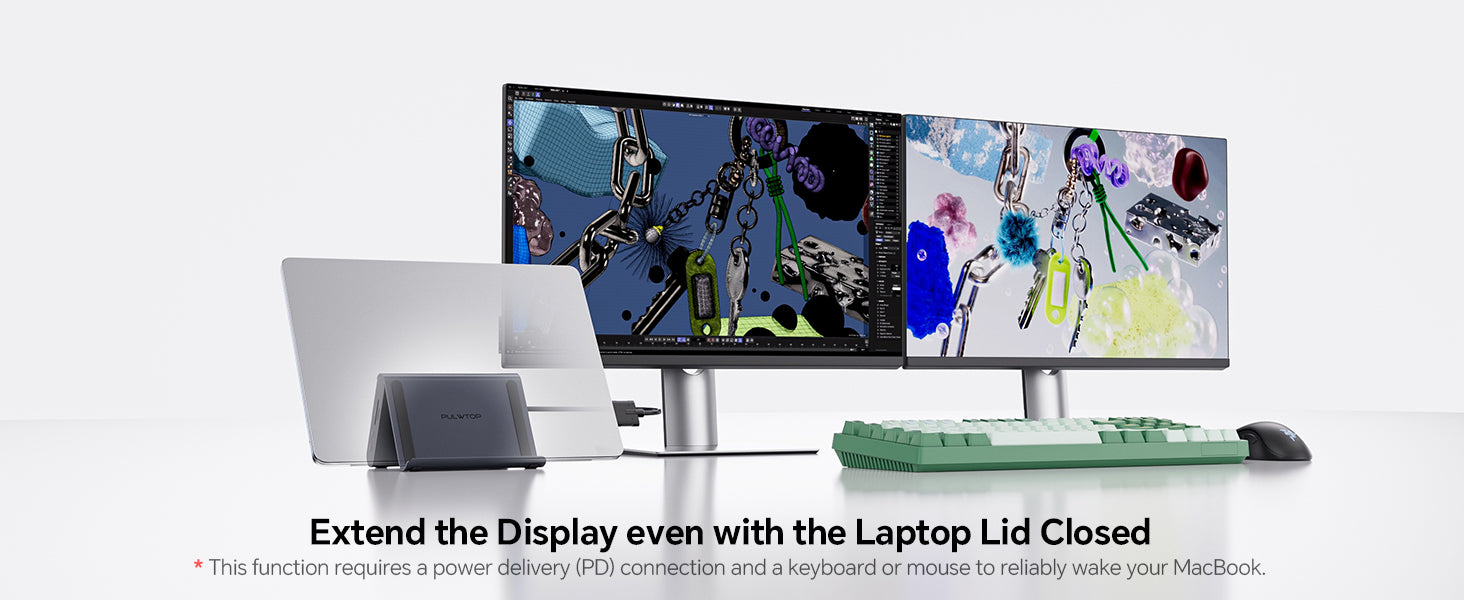
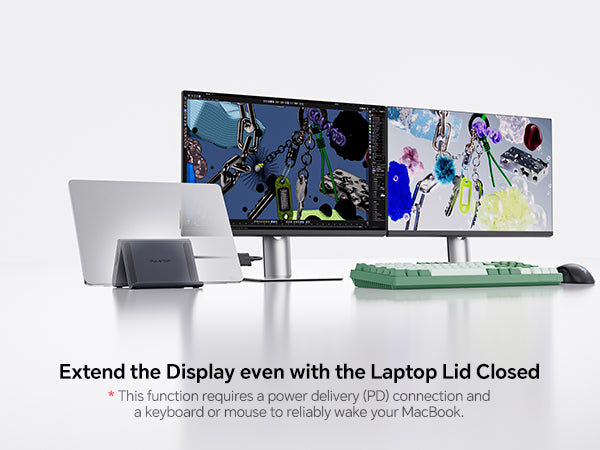
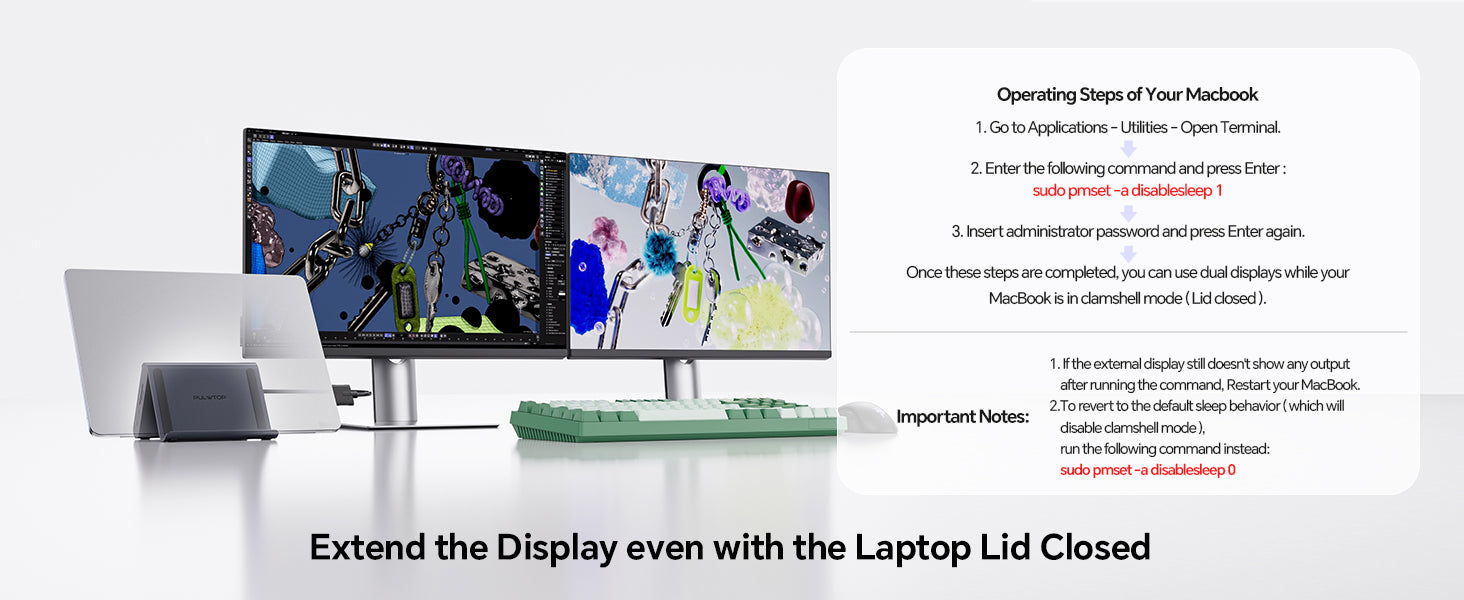
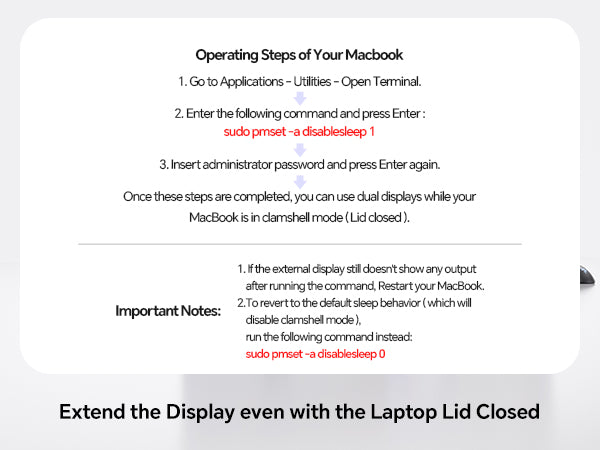
【Steps of Clamshell Mode】 ① Go to Applications → Utilities and open Terminal. ② Enter the following command and press Enter : sudo pmset -a disablesleep 1 ③ Insert administrator password and press Enter again. Once these steps are completed, you can use dual displays while your MacBook is in clamshell mode (lid closed).✳️ Important Notes: ① If the external display still doesn't show any output after running the command, restart your MacBook. ② To revert to the default sleep behavior (which will disable clamshell mode), run the following command instead: sudo pmset -a disablesleep 0

PULWTOP Macbook Docking Station Dual Monitor with 2×HDMI, 10Gbps USB-C/A, Ethernet, Audio for MacBook Pro/Air M4/M5 – Midnight
Sale price$89.89
Regular price$109.89 (/)






This product has no reviews yet.